
Mac supports follwoing shortcut keys to take screen shot's
1.Full web page scree shot command+shift+3
2 To clipbord image command+shift+control+4
You can take screenshots of your whole screen or just part of it. Screenshots are saved automatically as .png files on your desktop.
Take a screenshot of your whole screen
- Press Command (⌘)-Shift-3.
- Find the screenshot as a .png file on your desktop.

Take a screenshot of part of your screen
- Press Command (⌘)-Shift-4. You'll see that your cursor changes to a crosshair pointer.
- Move the crosshair pointer to where you want to start the screenshot.
- Drag to select an area. To adjust the area, hold Shift, Option, or the Space bar while you drag.
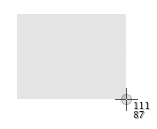
- When you've selected the area you want, release your mouse or trackpad button. Or to cancel, press Escape (esc).
- Find the screenshot as a .png file on your desktop.
Take a screenshot of a window
- Press Command (⌘)-Shift-4. You'll see that your cursor changes to a camera pointer.
- Press the Space bar.
- Move the camera pointer over the window to highlight it.
- Click your mouse or trackpad. Or to cancel, press Escape (esc) before you click.
- Find the screenshot as a .png file on your desktop.
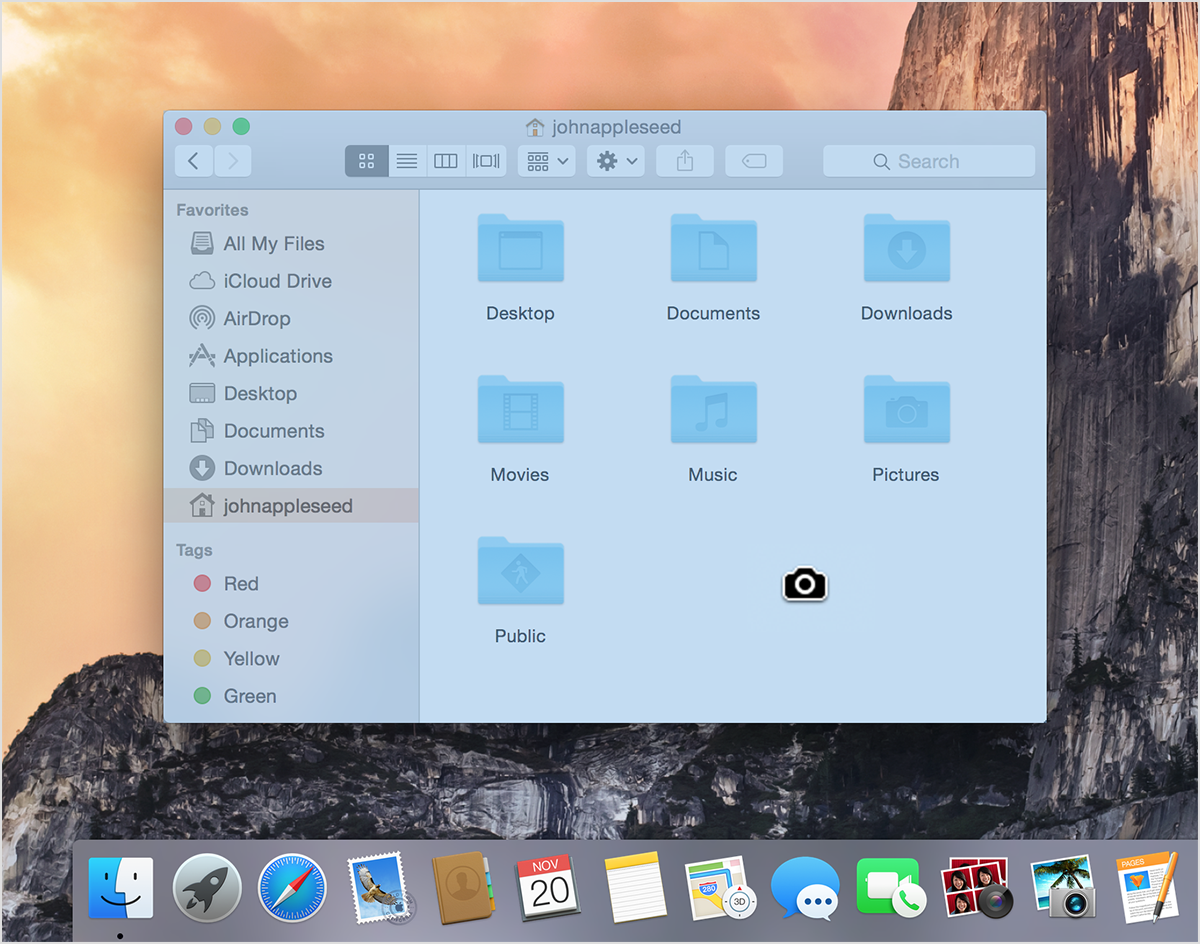
This works with open Finder windows and most application windows.
Take a screenshot of a menu
- Click the menu to reveal its contents.
- Press Command (⌘)-Shift-4.
- Drag the crosshair pointer over the entire menu.
- Release your mouse or trackpad button. Or to cancel, press Escape (esc).
- Find the screenshot as a .png file on your desktop.
Take a screenshot of a menu without the title
- Click the menu to reveal its contents.
- Press Command (⌘)-Shift-4.
- Press the Space bar. Or to cancel, press Escape (esc).
- Find the screenshot as a .png file on your desktop.
0 comments :
Post a Comment